# UIを作成

インベントリの中にあるアイテム（コイン、鍵）を画面上で表示し、主人公の体力も可視化しましょう。

## Canvas作成

ヒエラルキーに新しい Canvas を追加してください。

#### Canvas Scaler を紹介

Canvas を作成するときに、同時に「Canvas Scaler」のコンポーネントを作成される。このコンポーネントは想定する画面のサイズに合わせて、自動的にCanvasを拡大縮小する。

例えば、UIを開発したときに、想定していた画面サイズは FullHD (1920 x 1080) だった。ただ、プレーヤーは 4K（3840 x 2160）で遊ぶとしたら、画面がすごく小さくなってしまう。

この場合は Canvas Scaler を使用すれば、画面が大きくなっても、小さくなっても、いつも正しく表示される

<table border="1" id="bkmrk-canvas-scaler-%E7%84%A1%E3%81%97%EF%BC%9Aful" style="border-collapse: collapse; width: 100%;"><colgroup><col style="width: 99.881%;"></col></colgroup><tbody><tr><td>![image.png](https://class.illogic.games/uploads/images/gallery/2026-06/scaled-1680-/63Limage.png)

Canvas Scaler 無し：FullHD から 4K に切り替えると、UIが小さくなってしまう

</td></tr><tr><td>[![image.png](https://class.illogic.games/uploads/images/gallery/2026-06/scaled-1680-/H7Mimage.png)](https://class.illogic.games/uploads/images/gallery/2026-06/H7Mimage.png)

Canvas Scaler で想定サイズを入力すると、4K に切り替えても、UIがのサイズを保持する

</td></tr></tbody></table>

今回、上記の設定で進めましょう。

### コインの数

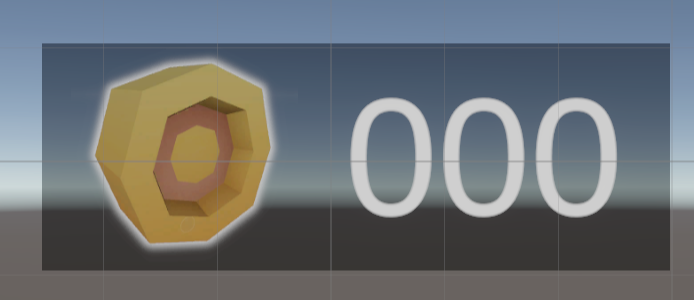
画面の右上にコインの数を表示しましょう。

![image.png](https://class.illogic.games/uploads/images/gallery/2026-06/scaled-1680-/gtHimage.png)

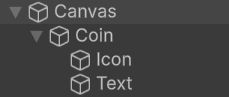
Canvas の中で、以下のようにヒエラルキーを作ってください：

<table border="1" id="bkmrk-%C2%A0-%E3%81%93%E3%81%86%E3%81%AA%E3%82%8B%E3%82%88%E3%81%86%E3%81%AB%EF%BC%9A-%C2%A0-coin%EF%BC%9Aim" style="border-collapse: collapse; width: 100%; border-width: 0px;"><colgroup><col style="width: 23.7092%;"></col><col style="width: 76.2491%;"></col></colgroup><tbody><tr><td style="border-width: 0px;">[![image.png](https://class.illogic.games/uploads/images/gallery/2026-06/scaled-1680-/KRJimage.png)](https://class.illogic.games/uploads/images/gallery/2026-06/KRJimage.png)

こうなるように：

![image.png](https://class.illogic.games/uploads/images/gallery/2026-06/scaled-1680-/z1simage.png)

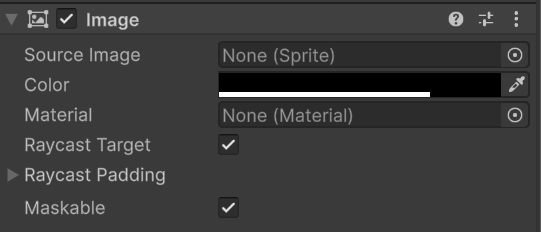
</td><td style="border-width: 0px;">- Coin：Image（画像）にし、背景は半透明の黒にする。この「部品」が画面の右上に表示されるので、アンカーポイントが右上にしてください。
![image.png](https://class.illogic.games/uploads/images/gallery/2026-06/scaled-1680-/o0pimage.png)

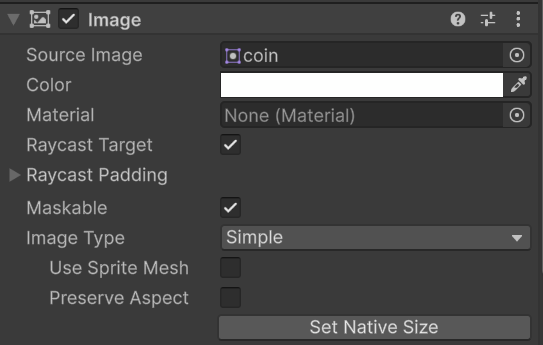
- Icon：Image（画像）にし、コインのアイコンにする

![image.png](https://class.illogic.games/uploads/images/gallery/2026-06/scaled-1680-/3bHimage.png)

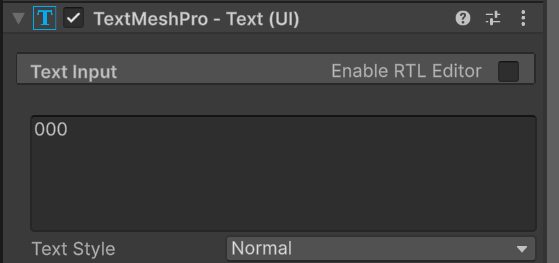
- Text：TextMeshPro にし、000 ので始まるようにする

![image.png](https://class.illogic.games/uploads/images/gallery/2026-06/scaled-1680-/iFyimage.png)

</td></tr></tbody></table>

#### Coinの画像が付かない？

3Dゲームを作るときに、すべての画像が 3Dモデルで使う「Texture (テクスチャ)」と思われる。テクスチャが UI で使えないので、**スプライト**になるように設定しなければならない。

UIで使う画像を選択し、Inspector で設定を変えてください：

![image.png](https://class.illogic.games/uploads/images/gallery/2026-06/scaled-1680-/OBhimage.png)

これで、「Sprite」（2Dゲームと UI）にし、スプライトモードは「Single」（単体）にする。

※：同じ画像にたくさんのスプライトがある場合はここは「Multiple」（多数）になる

### 鍵の数

同じ手順を従って、画面の右下に鍵の数が表示できるUIを作成してください

![image.png](https://class.illogic.games/uploads/images/gallery/2026-06/scaled-1680-/0xnimage.png)

## スクリプト

UI管理するスクリプト「UIManager」を作成し、コインの数と鍵の数を更新するメソッドを実装しましょう。まず、必要なのは、テキストの参照なので：

```c#
// UIを管理する
public class UIManager : MonoBehaviour
{
    // コインのテキスト
    [SerializeField] 
    private TextMeshProUGUI coinText;
    
    // 鍵のテキスト
    [SerializeField] 
    private TextMeshProUGUI keyText;
}
```

そして、アイテムのタグで、数を設定できるメソッド：

```c#
// アイテム（コイン、鍵）の数を設定
public void SetCount(string item, int count)
{
    // タグで確認
    switch (item)
    {
        // コイン
        case "Coin":
            coinText.text = $"{count:000}";
            break;
        // 鍵
        case "Key":
            keyText.text = $"{count:000}";
            break;
    }
}
```

#### Inventoryの編集

そして、Inventory スクリプトを更新し、鍵、またはコインを拾ったら、UIを更新しましょう。まず、Unityで紐づけできるように：

```c#
// アイテムを管理するインベントリ
public class Inventory : MonoBehaviour
{
    // UIを更新するため
    [SerializeField] 
    private UIManager uiManager;
    
    //（省略）
}
```

そして、拾うときに：

```c#
// トリガーが発動した
private void OnTriggerEnter(Collider other)
{
    // 相手のタグを求める
    string itemTag = other.tag;

    // そのタグあるかないかを確認
    // "ContainsKey" は、ディクショナリーの中に
    // 定めた「キー」があると、「true」を返す
    bool isItem = itemCount.ContainsKey(itemTag);

    // 有効なアイテじゃなければ、何もしない
    if (!isItem)
        return; // 終了

    // コライダー「の」トランスフォーム「の」親「の」ゲームオブジェクト
    Destroy(other.transform.parent.gameObject);
    itemCount[itemTag]++;
    
    // UIを更新
    uiManager.SetCount(itemTag, itemCount[itemTag]);
}
```

もちろん、消費のときも…

```c#
// アイテムを消費する
public void UseItem(string item, int count)
{
    // 現在の数を確認
    int nowCount = GetCount(item);
    
    // 足りたら、消費する
    if (nowCount >= count)
        itemCount[item] -= count;
    
    // UIを更新
    uiManager.SetCount(item, itemCount[item]);
}
```

### アタッチ、紐づけ

次、Canvas に UIManager をアタッチし、各種のテキストを設定：

![image.png](https://class.illogic.games/uploads/images/gallery/2026-06/scaled-1680-/Pqcimage.png)

そして、Inventory と UIManager の紐づけも

![image.png](https://class.illogic.games/uploads/images/gallery/2026-06/scaled-1680-/PATimage.png)

これでもう一度確認しましょう。