
# 各種の変換（トランスフォーム）

 今まで、物体の移動（位置）、回転と拡大縮小をUnityの「transform」コンポーネントを使ってやってきました。

![image.png](https://class.illogic.games/uploads/images/gallery/2026-06/scaled-1680-/ocYimage.png)

 実は裏側でなにが行われているのか、学んでいきましょう。

## 移動（位置）

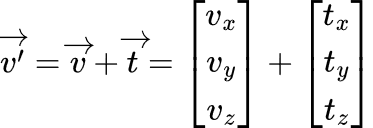
 一番簡単なのは、「移動」（位置）である。基本的に、メッシュの各頂点を移動させたい量を足すだけで実現できる。学んできた「[ベクトルの足し算](https://class.illogic.games/books/c3e87/page/28dd2#bkmrk-%E5%8A%A0%E7%AE%97)」を使えば、すぐ実装できる：

<table border="1" id="bkmrk--1" style="border-collapse: collapse; width: 100%; border-width: 1px; background-color: rgb(255, 255, 255);"><colgroup><col style="width: 99.881%;"></col></colgroup><tbody><tr><td>![image.png](https://class.illogic.games/uploads/images/gallery/2026-06/scaled-1680-/FXOimage.png)

</td></tr></tbody></table>

 ここで「***v'***」は移動した頂点で、「***v***」は元の頂点で、「***t***」は移動ベクトルである。

#### 練習

MyTransform のスクリプトを作成し、MyCube で作った立方体を移動する。

- 頂点の位置を変えないとけいないので、MyCube の頂点を読み込む（`GetVertices`）、書き込むメソッド（`SetVertices`）を作成してください。 
    - `GetVertices` は頂点配列のコピーを返してください ：  
        `return (Vector3[])vertices.Clone();`
    - そうしないと、元の頂点の位置が失ってしまいます～
- MyTransform で MyCubeの参照を `GetComponent` で取得し、頂点を変換する。 
    - 移動量（位置）を Inspector で変えられるようにしてください。
    - `Translate(Vector3[] vertices)`で移動を実装
    - `Update`で 
        - 頂点を取得
        - `Translate`で移動
        - 変換した頂点を設定

<details id="bkmrk-mycube-%E3%81%AE-getvertices"><summary>MyCube の GetVertices と SetVertices</summary>

```c#
// メッシュの頂点を返す
public Vector3[] GetVertices()
{
	// 元々の頂点データを守りたいので、コピーを返す
	return (Vector3[])vertices.Clone();
}

// メッシュの頂点を設定
public void SetVertices(Vector3[] vertices)
{
	mesh.vertices = vertices;
	mesh.RecalculateNormals(); // 方法ベクトル再計算
}
```

</details><details id="bkmrk-mytransform-%E3%82%B9%E3%82%AF%E3%83%AA%E3%83%97%E3%83%88-%2F%2F"><summary>MyTransform スクリプト</summary>

```c#
// 自分で作った変換(Transform）コンポーネント
public class MyTransform : MonoBehaviour
{
    // 位置・移動量
    [SerializeField] 
    private Vector3 position;
    
    // 立方体
    private MyCube cube;

    private void Start()
    {
        // MyCubeを取得し、変換する前の頂点を保管しておく
        cube = GetComponent<MyCube>();
    }
    
    private void Update()
    {
        // 頂点を取得
        Vector3 [] vertices = cube.GetVertices();
        
        // 移動を適用
        Translate(vertices); 
        
        // 変換した頂点を適用
        cube.SetVertices(vertices);
    }

    // 頂点を移動する
    private void Translate(Vector3[] vertices)
    {
        // 1個ずつを処理
        for (int i = 0; i < vertices.Length; i++)
        {
            // ベクトルの加算で移動を実現！
            vertices[i] = vertices[i] + position;
        }
    }
}
```

</details>## 拡大縮小（スケール）

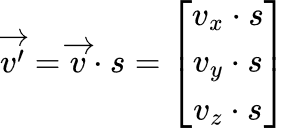
拡大縮小は「すべての頂点を大きくする」または「小さくする」ということで、それぞれの頂点の「倍率」の値をかければ良いでしょう（[ベクトルと実数の掛け算](https://class.illogic.games/books/c3e87/page/28dd2#bkmrk-%C2%A0)）

<table border="1" id="bkmrk--2" style="border-collapse: collapse; width: 100%; border-width: 1px; background-color: rgb(255, 255, 255);"><colgroup><col style="width: 99.881%;"></col></colgroup><tbody><tr><td>![image.png](https://class.illogic.games/uploads/images/gallery/2026-06/scaled-1680-/rUkimage.png)

</td></tr></tbody></table>

#### 練習

MyTransform を編集して…

- Inspectorで倍率の係数を変えれるようにする（デフォルト値：1）
- `Update`で、`Translate` の前に `Scale` を適用

<details id="bkmrk-mytransform-%E3%82%B9%E3%82%AF%E3%83%AA%E3%83%97%E3%83%88%EF%BC%88%E7%B7%A8%E9%9B%86"><summary>MyTransform スクリプト（編集分）</summary>

```c#
// 拡大縮小
[SerializeField] 
private float scale = 1;

private void Update()
{
	// 頂点を取得
	Vector3 [] vertices = cube.GetVertices();

	// 拡大縮小
	Scale(vertices);
	
	// 移動を適用
	Translate(vertices); 
	
	// 変換した頂点を適用
	cube.SetVertices(vertices);
}

private void Scale(Vector3[] vertices)
{
	// 1個ずつを処理
	for (int i = 0; i < vertices.Length; i++)
	{
		// ベクトルの乗算で拡大縮小を実現！
		vertices[i] = vertices[i] * scale;
	}
}
```

</details>### 正しいスケール

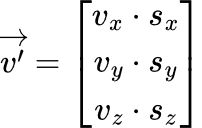
 よく見れば、Unityでは軸は別々でスケールできるよね。作ってきた「Scale」は３つの軸を同時にスケールしてしまう。ならば、少し式を変えないといけないが、ベクトル同士の掛け算ができないはず…

<table border="1" id="bkmrk--3" style="border-collapse: collapse; width: 100%; border-width: 1px; background-color: rgb(255, 255, 255);"><colgroup><col style="width: 99.881%;"></col></colgroup><tbody><tr><td>![image.png](https://class.illogic.games/uploads/images/gallery/2026-06/scaled-1680-/84Cimage.png)

</td></tr></tbody></table>

ベクトル「v」と「s」の各要素の乗算したいけど、ベクトル同士の乗算がない（外積と内積どっちも使えない！）

ちょっと待って…「各要素の乗算」って[行列でできる](https://class.illogic.games/books/c3e87/page/28dd2#bkmrk-%E3%83%99%E3%82%AF%E3%83%88%E3%83%AB%E3%81%A8%E8%A1%8C%E5%88%97%E3%81%AE%E6%8E%9B%E3%81%91%E7%AE%97)のでは？たしかに、これができる！

<table border="1" id="bkmrk--4" style="border-collapse: collapse; width: 100%; border-width: 1px; background-color: rgb(255, 255, 255);"><colgroup><col style="width: 99.881%;"></col></colgroup><tbody><tr><td>![image.png](https://class.illogic.games/uploads/images/gallery/2026-06/scaled-1680-/lasimage.png)

</td></tr></tbody></table>

<span class="c5"> ここで「S」のことは「スケール行列」といい、各頂点にかければ、正しく拡大縮小を実装できる。</span>

#### 練習

MyTransform を編集して…

- 倍率の処理を削除
- Inspectorでx, y, zの各軸の拡大縮小をを変えれるようにする（デフォルト値：1, 1, 1）
- `Scale` を更新し、スケール行列を作成し、変換してください。

<details id="bkmrk-mytransform-%E3%82%B9%E3%82%AF%E3%83%AA%E3%83%97%E3%83%88%EF%BC%88%E7%B7%A8%E9%9B%86-1"><summary>MyTransform スクリプト（編集分）</summary>

```c#
// 拡大縮小
[SerializeField] 
private Vector3 scale = new Vector3(1, 1, 1);

private void Scale(Vector3[] vertices)
{
	// スケール行列を作成
	Matrix s = new Matrix(3, 3);
	s.Set(0, 0, scale.x);
	s.Set(1, 1, scale.y);
	s.Set(2, 2, scale.z);
	
	// 1個ずつを処理
	for (int i = 0; i < vertices.Length; i++)
	{
		// 行列の乗算で拡大縮小を実現！
		vertices[i] = s.Multiply(vertices[i]);
	}
}
```

</details>## 回転

これはややこしい…

### 2次元の回転

 まず、2Dの回転を考えてみましょう。[三角関数を使って回転できる](https://class.illogic.games/books/c3e87/page/9b861#bkmrk-%E7%B7%B4%E7%BF%92)はずなので…

![image.png](https://class.illogic.games/uploads/images/gallery/2026-06/scaled-1680-/TYMimage.png)

ある頂点「***v=(v<sub>x</sub>, v<sub>y</sub>)***」の位置を角度「***θ***」で回転したら、新しい位置「***v’=(v’<sub>x</sub>, v’<sub>y</sub>)***」を求めたい。これで難しいので、問題を分解して解決しましょう。

[![image.png](https://class.illogic.games/uploads/images/gallery/2026-06/scaled-1680-/7bRimage.png)](https://class.illogic.games/uploads/images/gallery/2026-06/7bRimage.png)

ベクトル ***v=(v<sub>x</sub>, v<sub>y</sub>)*** を成分 ***v<sub>x</sub>*** と ***v<sub>y</sub>*** に分解し、別々で回転し、加法でまた合体すれば、回転した ***v'*** を求めることができる。名前をわかりやすくするため各成分のベクトルを「a」と「b」にしましょう。

[![image.png](https://class.illogic.games/uploads/images/gallery/2026-06/scaled-1680-/Guvimage.png)](https://class.illogic.games/uploads/images/gallery/2026-06/Guvimage.png)

#### 「a」の回転

「a」の回転には、単位円、および三角関数で学んだ「サイン」と「コサイン」で回転できることがわかる。確か：

![image.png](https://class.illogic.games/uploads/images/gallery/2026-06/scaled-1680-/OgOimage.png)

「a」を「θ」度で回転すれば、a' になる。ここで：

<table border="1" id="bkmrk--9" style="border-collapse: collapse; width: 100%; border-width: 1px; background-color: rgb(255, 255, 255);"><colgroup><col style="width: 50%;"></col><col style="width: 50%;"></col></colgroup><tbody><tr><td class="align-center">![image.png](https://class.illogic.games/uploads/images/gallery/2026-06/scaled-1680-/cNvimage.png)

</td><td class="align-center">![image.png](https://class.illogic.games/uploads/images/gallery/2026-06/scaled-1680-/zDeimage.png)

</td></tr></tbody></table>

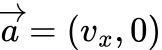
ただし、「a」は「v」の「x」成分なので、以下のは事実である：

<table border="1" id="bkmrk--10" style="border-collapse: collapse; width: 100%; border-width: 1px; background-color: rgb(255, 255, 255);"><colgroup><col style="width: 99.881%;"></col></colgroup><tbody><tr><td>[![image.png](https://class.illogic.games/uploads/images/gallery/2026-06/scaled-1680-/kFiimage.png)](https://class.illogic.games/uploads/images/gallery/2026-06/kFiimage.png)

</td></tr></tbody></table>

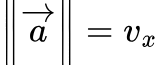
ので、ベクトル「a」のノルムは：

<table border="1" id="bkmrk--11" style="border-collapse: collapse; width: 100%; border-width: 1px; background-color: rgb(255, 255, 255);"><colgroup><col style="width: 99.881%;"></col></colgroup><tbody><tr><td>![image.png](https://class.illogic.games/uploads/images/gallery/2026-06/scaled-1680-/QNSimage.png)

</td></tr></tbody></table>

つまり

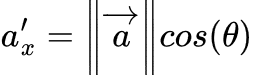
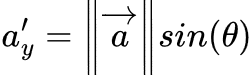
<table border="1" id="bkmrk--12" style="border-collapse: collapse; width: 100%; border-width: 1px; background-color: rgb(255, 255, 255);"><colgroup><col style="width: 50%;"></col><col style="width: 50%;"></col></colgroup><tbody><tr><td class="align-center">![image.png](https://class.illogic.games/uploads/images/gallery/2026-06/scaled-1680-/8hximage.png)

</td><td class="align-center">![image.png](https://class.illogic.games/uploads/images/gallery/2026-06/scaled-1680-/JtFimage.png)

</td></tr></tbody></table>

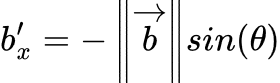
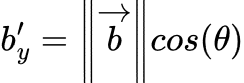
#### 「b」の回転

「b」の回転は同じ考え方で行うのですが、幾何学的にはわかりにくいので、***xy*** 座標系を倒してみましょう：

![image.png](https://class.illogic.games/uploads/images/gallery/2026-06/scaled-1680-/USximage.png)

ここでまたサインとコサインを使えるが、x と y 軸が倒したので、以下のようになる：

<table border="1" id="bkmrk--14" style="border-collapse: collapse; width: 100%; border-width: 1px; background-color: rgb(255, 255, 255);"><colgroup><col style="width: 50%;"></col><col style="width: 50%;"></col></colgroup><tbody><tr><td class="align-center">![image.png](https://class.illogic.games/uploads/images/gallery/2026-06/scaled-1680-/bY4image.png)

</td><td class="align-center">![image.png](https://class.illogic.games/uploads/images/gallery/2026-06/scaled-1680-/SqEimage.png)

</td></tr></tbody></table>

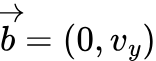
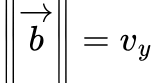
そして、「b」は「v」の「y」成分なので、以下のは事実である：

<table border="1" id="bkmrk--15" style="border-collapse: collapse; width: 100%; border-width: 1px; background-color: rgb(255, 255, 255);"><colgroup><col style="width: 99.881%;"></col></colgroup><tbody><tr><td>![image.png](https://class.illogic.games/uploads/images/gallery/2026-06/scaled-1680-/a2Himage.png)

</td></tr></tbody></table>

ので、ベクトル「b」のノルムは：

<table border="1" id="bkmrk--16" style="border-collapse: collapse; width: 100%; border-width: 1px; background-color: rgb(255, 255, 255);"><colgroup><col style="width: 99.881%;"></col></colgroup><tbody><tr><td>![image.png](https://class.illogic.games/uploads/images/gallery/2026-06/scaled-1680-/m8kimage.png)

</td></tr></tbody></table>

したがって、

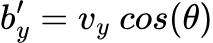
<table border="1" id="bkmrk--17" style="border-collapse: collapse; width: 100%; border-width: 1px; background-color: rgb(255, 255, 255);"><colgroup><col style="width: 50%;"></col><col style="width: 50%;"></col></colgroup><tbody><tr><td class="align-center">![image.png](https://class.illogic.games/uploads/images/gallery/2026-06/scaled-1680-/RZ6image.png)

</td><td class="align-center">![image.png](https://class.illogic.games/uploads/images/gallery/2026-06/scaled-1680-/xxaimage.png)

</td></tr></tbody></table>

#### 「a'+b'」の合体

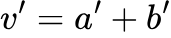
分解したベクトル「v」の回転「v'」、回転した成分「a'」と「b'」の加法で復元できる。つまり：

<table border="1" id="bkmrk--18" style="border-collapse: collapse; width: 100%; border-width: 1px; background-color: rgb(255, 255, 255);"><colgroup><col style="width: 99.881%;"></col></colgroup><tbody><tr><td>![image.png](https://class.illogic.games/uploads/images/gallery/2026-06/scaled-1680-/eneimage.png)

</td></tr></tbody></table>

ベクトルの加法は各成分の足し算なので：

<table border="1" id="bkmrk--19" style="border-collapse: collapse; width: 100%; border-width: 1px; background-color: rgb(255, 255, 255);"><colgroup><col style="width: 99.881%;"></col></colgroup><tbody><tr><td>![image.png](https://class.illogic.games/uploads/images/gallery/2026-06/scaled-1680-/LZ6image.png)

</td></tr></tbody></table>

上記で求めた式を書き換えるとこうなる：

<table border="1" id="bkmrk--20" style="border-collapse: collapse; width: 100%; border-width: 1px; background-color: rgb(255, 255, 255);"><colgroup><col style="width: 50%;"></col><col style="width: 50%;"></col></colgroup><tbody><tr><td>![image.png](https://class.illogic.games/uploads/images/gallery/2026-06/scaled-1680-/8MOimage.png)

</td><td>![image.png](https://class.illogic.games/uploads/images/gallery/2026-06/scaled-1680-/MOHimage.png)

</td></tr></tbody></table>

これは回転ベクトル「v'」になる。ただし、多少読みにくいので、[ベクトル×行列](https://class.illogic.games/books/c3e87/page/28dd2#bkmrk-%E3%83%99%E3%82%AF%E3%83%88%E3%83%AB%E3%81%A8%E8%A1%8C%E5%88%97%E3%81%AE%E6%8E%9B%E3%81%91%E7%AE%97)として表現ができる：

<table border="1" id="bkmrk--21" style="border-collapse: collapse; width: 100%; border-width: 1px; background-color: rgb(255, 255, 255);"><colgroup><col style="width: 99.881%;"></col></colgroup><tbody><tr><td class="align-center">![image.png](https://class.illogic.games/uploads/images/gallery/2026-06/scaled-1680-/FXSimage.png)

</td></tr></tbody></table>

ここで「R(θ)」は「<span style="color: rgb(186, 55, 42);">**回転行列**</span>」という。ある２次元の位置（頂点）「v」を角度「θ」を回転したいなら、この行列の掛け算で回転した後に位置を求めることができる。

### 3次元の回転

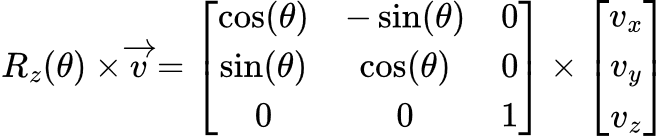
２次元の場合は問題ないが、3Dの場合はどう変わる？まず、Z軸周りの回転を見てみましょう。実は、この回転は2Dの回転と全く同じであり、Zの値はずっとゼロになるだけ：

![image.png](https://class.illogic.games/uploads/images/gallery/2026-06/scaled-1680-/dDKimage.png)

つまり：

<table border="1" id="bkmrk--23" style="border-collapse: collapse; width: 100%; border-width: 1px; background-color: rgb(255, 255, 255);"><colgroup><col style="width: 99.881%;"></col></colgroup><tbody><tr><td>![image.png](https://class.illogic.games/uploads/images/gallery/2026-06/scaled-1680-/awmimage.png)

</td></tr></tbody></table>

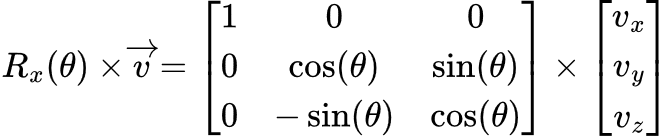
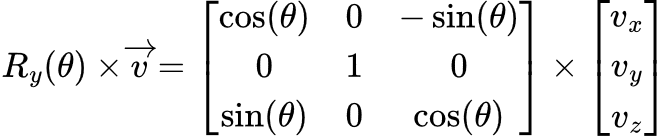
これは「<span style="color: rgb(186, 55, 42);">**Z軸周りの回転行列**</span>」である。上記と同じ考えを持ち、X軸とY軸周りの回転行列を求めることができる

<table border="1" id="bkmrk--24" style="border-collapse: collapse; width: 100%; border-width: 1px; background-color: rgb(255, 255, 255);"><colgroup><col style="width: 99.881%;"></col></colgroup><tbody><tr><td class="align-center">![image.png](https://class.illogic.games/uploads/images/gallery/2026-06/scaled-1680-/b9bimage.png)

</td></tr><tr><td class="align-center">![image.png](https://class.illogic.games/uploads/images/gallery/2026-06/scaled-1680-/aTJimage.png)

</td></tr></tbody></table>

#### 練習

MyTransform を編集して…

- Inspectorでx, y, zの各軸の回転角度を設定できるようにする。
- 各軸を回転行列を作成するメソッドを作成してください 
    - `Matrix MakeRotX();`
    - `Matrix MakeRotY();`
    - `Matrix MakeRotY();`
- `void RotateEuler(Vector3[] vertices)`（オイラー角度の回転）メソッドを実装 
    - ３つ回転行列を作成し、X→Y→Zの順番で処理し、回転する

<details id="bkmrk-mytransform-%E3%82%B9%E3%82%AF%E3%83%AA%E3%83%97%E3%83%88%EF%BC%88%E7%B7%A8%E9%9B%86-2"><summary>MyTransform スクリプト（編集分）</summary>

```c#
// X軸周りの回転行列を作成
private Matrix MakeRotX()
{
    // 度→ラジアン
    float radian = Mathf.Deg2Rad * rotation.x;

    // サインとコサインを計算
    float c = Mathf.Cos(radian);
    float s = Mathf.Sin(radian);
    
    // 行列を構築
    Matrix m = new Matrix(3, 3);
    m.Set(0, 0, 1);
    m.Set(0, 1, 0);
    m.Set(0, 2, 0);

    m.Set(1, 0, 0);
    m.Set(1, 1, c);
    m.Set(1, 2, s);

    m.Set(2, 0, 0);
    m.Set(2, 1, -s);
    m.Set(2, 2, c);

    return m;
}

// Y軸周りの回転行列を作成
private Matrix MakeRotY()
{
    // 度→ラジアン
    float radian = Mathf.Deg2Rad * rotation.y;

    // サインとコサインを計算
    float c = Mathf.Cos(radian);
    float s = Mathf.Sin(radian);
    
    // 行列を構築
    Matrix m = new Matrix(3, 3);
    m.Set(0, 0, c);
    m.Set(0, 1, 0);
    m.Set(0, 2, -s);

    m.Set(1, 0, 0);
    m.Set(1, 1, 1);
    m.Set(1, 2, 0);

    m.Set(2, 0, s);
    m.Set(2, 1, 0);
    m.Set(2, 2, c);

    return m;
}

// Z軸周りの回転行列を作成
private Matrix MakeRotZ()
{
    // 度→ラジアン
    float radian = Mathf.Deg2Rad * rotation.z;

    // サインとコサインを計算
    float c = Mathf.Cos(radian);
    float s = Mathf.Sin(radian);
    
    // 行列を構築
    Matrix m = new Matrix(3, 3);
    m.Set(0, 0, c);
    m.Set(0, 1, -s);
    m.Set(0, 2, 0);

    m.Set(1, 0, s);
    m.Set(1, 1, c);
    m.Set(1, 2, 0);

    m.Set(2, 0, 0);
    m.Set(2, 1, 0);
    m.Set(2, 2, 1);

    return m;
}

// オイラー角度の回転
private void RotateEuler(Vector3[] vertices)
{
    Matrix rotX = MakeRotX();
    Matrix rotY = MakeRotY();
    Matrix rotZ = MakeRotZ();
    
    // 1個ずつを処理
    for (int i = 0; i < vertices.Length; i++)
    {
        // X→Y→Zの順番で回転
        Vector3 v = vertices[i];
        v = rotX.Multiply(v);
        v = rotY.Multiply(v);
        v = rotZ.Multiply(v);
        vertices[i] = v;
    }
}
```

</details>## すべての変換を統一する：同次座標

 スケールと回転とも3x3の行列で、「行列×ベクトル」のパターンを使うことができるが、位置（移動）は、ベクトル同士の足し算なので、処理の一体化できない。すべての変換を統一できる行列にできれば、処理も統一できるでので、新しい概念を学びましょう。

 ちょっと見てみましょう：各成分（x, y, z）を移動量（tx, ty, tz）を足さないといけないので、行列にするとしたら、こういう作戦がある。[3x3の行列ならば、各成分の掛け算になる](https://class.illogic.games/books/c3e87/page/598b3#bkmrk-%E6%AD%A3%E3%81%97%E3%81%84%E3%82%B9%E3%82%B1%E3%83%BC%E3%83%AB)が、以下のように工夫すれば…

<table border="1" id="bkmrk--25" style="border-collapse: collapse; width: 100%; border-width: 1px; background-color: rgb(255, 255, 255);"><colgroup><col style="width: 99.881%;"></col></colgroup><tbody><tr><td>![image.png](https://class.illogic.games/uploads/images/gallery/2026-06/scaled-1680-/al4image.png)

</td></tr></tbody></table>

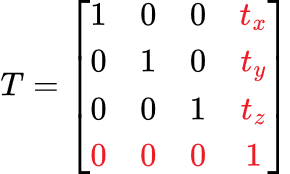
4x4の行列との掛け算ができるので、<span style="color: rgb(186, 55, 42);">**移動行列**</span>を、以下のように作ることができる：

<table border="1" id="bkmrk--26" style="border-collapse: collapse; width: 100%; border-width: 1px; background-color: rgb(255, 255, 255);"><colgroup><col style="width: 99.881%;"></col></colgroup><tbody><tr><td>![image.png](https://class.illogic.games/uploads/images/gallery/2026-06/scaled-1680-/vEAimage.png)

</td></tr></tbody></table>

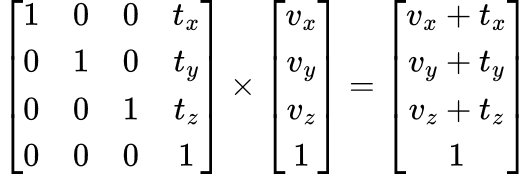
ベクトルと行列の掛け算をすると：

<table border="1" id="bkmrk--27" style="border-collapse: collapse; width: 100%; border-width: 1px; background-color: rgb(255, 255, 255);"><colgroup><col style="width: 99.881%;"></col></colgroup><tbody><tr><td>![image.png](https://class.illogic.games/uploads/images/gallery/2026-06/scaled-1680-/vbTimage.png)

</td></tr></tbody></table>

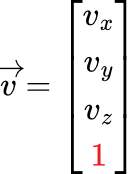
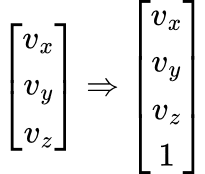
3Dベクトルに「1」の成分を追加されたベクトルは「**<span style="color: rgb(186, 55, 42);">同次座標</span>**ベクトル」という。成分を増やしても、次元数は同じである。

### 3D座標 ⇒ 同次座標の変換

普通の3Dベクトルを同次座標に変換するのは、１つの成分を追加し、「1」にするだけ：

<table border="1" id="bkmrk--28" style="border-collapse: collapse; width: 100%; border-width: 1px; background-color: rgb(255, 255, 255);"><colgroup><col style="width: 99.881%;"></col></colgroup><tbody><tr><td>![image.png](https://class.illogic.games/uploads/images/gallery/2026-06/scaled-1680-/JIkimage.png)

</td></tr></tbody></table>

### 同次座標 ⇒ 3D座標の変換

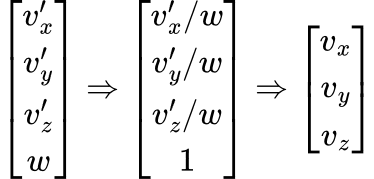
ベクトルの移動、拡大縮小、回転で変換したあとに、最後の成分が必ず「1」であることを保証できない。なので、まずベクトルを最後の成分で割り、外す：

<table border="1" id="bkmrk--29" style="border-collapse: collapse; width: 100%; border-width: 1px; background-color: rgb(255, 255, 255);"><colgroup><col style="width: 99.881%;"></col></colgroup><tbody><tr><td>![image.png](https://class.illogic.games/uploads/images/gallery/2026-06/scaled-1680-/QIiimage.png)

</td></tr></tbody></table>

### 変換を統一する

したがって、同次座標を使えば、すべての変換を 4x4 の行列として表現ができる：

<table border="1" id="bkmrk-%E7%A7%BB%E5%8B%95-%E6%8B%A1%E5%A4%A7%E7%B8%AE%E5%B0%8F-%E5%9B%9E%E8%BB%A2%EF%BC%88x%EF%BC%89-%E5%9B%9E%E8%BB%A2%EF%BC%88y%EF%BC%89-" style="border-collapse: collapse; width: 100%; border-width: 1px; background-color: rgb(255, 255, 255); height: 349.216px;"><colgroup><col style="width: 16.6786%;"></col><col style="width: 16.6786%;"></col><col style="width: 16.6786%;"></col><col style="width: 16.6786%;"></col><col style="width: 16.6786%;"></col><col style="width: 16.6786%;"></col></colgroup><tbody><tr style="height: 29.4667px;"><td class="align-center" colspan="3" style="height: 29.4667px;"><span style="color: rgb(0, 0, 0);">移動</span></td><td class="align-center" colspan="3" style="height: 29.4667px;"><span style="color: rgb(0, 0, 0);">拡大縮小</span></td></tr><tr style="height: 152.683px;"><td class="align-center" colspan="3" style="height: 152.683px;">[![image.png](https://class.illogic.games/uploads/images/gallery/2026-06/scaled-1680-/PMKimage.png)](https://class.illogic.games/uploads/images/gallery/2026-06/PMKimage.png)

</td><td class="align-center" colspan="3" style="height: 152.683px;">[![image.png](https://class.illogic.games/uploads/images/gallery/2026-06/scaled-1680-/nLZimage.png)](https://class.illogic.games/uploads/images/gallery/2026-06/nLZimage.png)

</td></tr><tr style="height: 28.4667px;"><td class="align-center" colspan="2" style="height: 28.4667px;"><span style="color: rgb(0, 0, 0);">回転（X）</span></td><td class="align-center" colspan="2" style="height: 28.4667px;"><span style="color: rgb(0, 0, 0);">回転（Y）</span></td><td class="align-center" colspan="2" style="height: 28.4667px;"><span style="color: rgb(0, 0, 0);">回転（Z）</span></td></tr><tr style="height: 138.6px;"><td class="align-center" colspan="2" style="height: 138.6px;">[![image.png](https://class.illogic.games/uploads/images/gallery/2026-06/scaled-1680-/YY2image.png)](https://class.illogic.games/uploads/images/gallery/2026-06/YY2image.png)

</td><td class="align-center" colspan="2" style="height: 138.6px;">[![image.png](https://class.illogic.games/uploads/images/gallery/2026-06/scaled-1680-/f2bimage.png)](https://class.illogic.games/uploads/images/gallery/2026-06/f2bimage.png)

</td><td class="align-center" colspan="2" style="height: 138.6px;">[![image.png](https://class.illogic.games/uploads/images/gallery/2026-06/scaled-1680-/SnVimage.png)](https://class.illogic.games/uploads/images/gallery/2026-06/SnVimage.png)

</td></tr></tbody></table>

#### 練習

Matrix を編集し、Vector4との乗算できるようにする

MyTransform を編集し：

- 頂点の配列を同次座標に変換
- 移動、拡大縮小、回転を同次座標に対応できるようにする
- 変換した後に同次座標の頂点をまた3Dベクトルに戻す

<details id="bkmrk-matrix-%E3%81%AE-multiply%28ve"><summary>Matrix の Multiply(Vector4) メソッド</summary>

```c#
// 行列×ベクトルの掛け算
public Vector4 Multiply(Vector4 vector)
{
    // ベクトルを4x1の行列にする
    Matrix b = new Matrix(4, 1);
    b.Set(0, 0, vector.x);
    b.Set(1, 0, vector.y);
    b.Set(2, 0, vector.z);
    b.Set(3, 0, vector.w);

    // 普通の掛け算
    Matrix c = Multiply(b);

    // 結果をまたベクトルにする
    Vector4 result = new Vector4();
    result.x = c.Get(0, 0);
    result.y = c.Get(1, 0);
    result.z = c.Get(2, 0);
    result.w = c.Get(3, 0);

    return result;
}
```

</details><details id="bkmrk-%E5%90%8C%E6%AC%A1%E5%BA%A7%E6%A8%99%E3%82%92%E4%BD%BF%E7%94%A8%E3%81%99%E3%82%8B-mytransfor"><summary>同次座標を使用する MyTransform</summary>

```c#
// 自分で作った変換(Transform）コンポーネント
public class MyTransform : MonoBehaviour
{
    // 位置・移動量
    [SerializeField] 
    private Vector3 position;

    // 拡大縮小
    [SerializeField] 
    private Vector3 scale = new Vector3(1, 1, 1);
 
    // 回転
    [SerializeField]
    private Vector3 rotation;
    
    // 立方体
    private MyCube cube;

    private void Start()
    {
        // MyCubeを取得し、変換する前の頂点を保管しておく
        cube = GetComponent<MyCube>();
    }
    
    private void Update()
    {
        // 頂点を取得
        Vector3 [] vertices = cube.GetVertices();

        // 同次座標の頂点
        Vector4[] v4 = Vector3ToVector4(vertices);
        
        // 回転
        RotateEuler(v4);
        
        // 拡大縮小
        Scale(v4);
        
        // 移動を適用
        Translate(v4);

        // 同次座標からまた３次元へ
        vertices = Vector4ToVector3(v4);
        
        // 変換した頂点を適用
        cube.SetVertices(vertices);
    }

    // 3Dベクトルから4D同次座標へ
    private Vector4[] Vector3ToVector4(Vector3[] vertices)
    {
        Vector4[] convert = new Vector4[vertices.Length];
        for (int i = 0; i < convert.Length; i++)
        {
            Vector3 v3 = vertices[i];
            convert[i] = new Vector4(v3.x, v3.y, v3.z, 1);
        }

        return convert;
    }

    // 4D同次座標から3Dベクトルへ
    private Vector3[] Vector4ToVector3(Vector4[] vertices)
    {
        Vector3[] convert = new Vector3[vertices.Length];
        for (int i = 0; i < convert.Length; i++)
        {
            Vector4 v4 = vertices[i];
            convert[i] = new Vector3(v4.x, v4.y, v4.z) / v4.w;
        }

        return convert;
    }
    
    // X軸周りの回転行列を作成
    private Matrix MakeRotX()
    {
        // 度→ラジアン
        float radian = Mathf.Deg2Rad * rotation.x;

        // サインとコサインを計算
        float c = Mathf.Cos(radian);
        float s = Mathf.Sin(radian);
        
        // 行列を構築
        Matrix m = new Matrix(4, 4);
        m.Set(0, 0, 1);
        m.Set(0, 1, 0);
        m.Set(0, 2, 0);
        m.Set(0, 3, 0);

        m.Set(1, 0, 0);
        m.Set(1, 1, c);
        m.Set(1, 2, s);
        m.Set(1, 3, 0);

        m.Set(2, 0, 0);
        m.Set(2, 1, -s);
        m.Set(2, 2, c);
        m.Set(2, 3, 0);
        
        m.Set(3, 0, 0);
        m.Set(3, 1, 0);
        m.Set(3, 2, 0);
        m.Set(3, 3, 1);

        return m;
    }
    
    // Y軸周りの回転行列を作成
    private Matrix MakeRotY()
    {
        // 度→ラジアン
        float radian = Mathf.Deg2Rad * rotation.y;

        // サインとコサインを計算
        float c = Mathf.Cos(radian);
        float s = Mathf.Sin(radian);
        
        // 行列を構築
        Matrix m = new Matrix(4, 4);
        m.Set(0, 0, c);
        m.Set(0, 1, 0);
        m.Set(0, 2, -s);
        m.Set(0, 3, 0);

        m.Set(1, 0, 0);
        m.Set(1, 1, 1);
        m.Set(1, 2, 0);
        m.Set(1, 3, 0);

        m.Set(2, 0, s);
        m.Set(2, 1, 0);
        m.Set(2, 2, c);
        m.Set(2, 3, 0);

        m.Set(3, 0, 0);
        m.Set(3, 1, 0);
        m.Set(3, 2, 0);
        m.Set(3, 3, 1);
        
        return m;
    }
    
    // Z軸周りの回転行列を作成
    private Matrix MakeRotZ()
    {
        // 度→ラジアン
        float radian = Mathf.Deg2Rad * rotation.z;

        // サインとコサインを計算
        float c = Mathf.Cos(radian);
        float s = Mathf.Sin(radian);
        
        // 行列を構築
        Matrix m = new Matrix(4, 4);
        m.Set(0, 0, c);
        m.Set(0, 1, -s);
        m.Set(0, 2, 0);
        m.Set(0, 3, 0);

        m.Set(1, 0, s);
        m.Set(1, 1, c);
        m.Set(1, 2, 0);
        m.Set(1, 3, 0);

        m.Set(2, 0, 0);
        m.Set(2, 1, 0);
        m.Set(2, 2, 1);
        m.Set(2, 3, 0);

        m.Set(3, 0, 0);
        m.Set(3, 1, 0);
        m.Set(3, 2, 0);
        m.Set(3, 3, 1);
        
        return m;
    }
    
    private void RotateEuler(Vector4[] vertices)
    {
        Matrix rotX = MakeRotX();
        Matrix rotY = MakeRotY();
        Matrix rotZ = MakeRotZ();
        
        // 1個ずつを処理
        for (int i = 0; i < vertices.Length; i++)
        {
            // X→Y→Zの順番で回転
            Vector4 v = vertices[i];
            v = rotX.Multiply(v);
            v = rotY.Multiply(v);
            v = rotZ.Multiply(v);
            vertices[i] = v;
        }
    }
    
    // 拡大縮小
    private void Scale(Vector4[] vertices)
    {
        // スケール行列を作成
        Matrix s = new Matrix(4, 4);
        s.Set(0, 0, scale.x);
        s.Set(1, 1, scale.y);
        s.Set(2, 2, scale.z);
        s.Set(3, 3, 1);
        
        // 1個ずつを処理
        for (int i = 0; i < vertices.Length; i++)
        {
            // ベクトルの乗算で拡大縮小を実現！
            vertices[i] = s.Multiply(vertices[i]);
        }
    }

    // 頂点を移動する
    private void Translate(Vector4[] vertices)
    {
        // 移動行列を作成
        Matrix t = new Matrix(4, 4);
        t.Set(0, 0, 1);
        t.Set(1, 1, 1);
        t.Set(2, 2, 1);
        
        t.Set(0, 3, position.x);
        t.Set(1, 3, position.y);
        t.Set(2, 3, position.z);
        t.Set(3, 3, 1);
        
        // 1個ずつを処理
        for (int i = 0; i < vertices.Length; i++)
        {
            vertices[i] = t.Multiply(vertices[i]);
        }
    }
}
```

</details>## 変換の連結 ー 変換行列が連続に

 移動、スケール、回転それそれは別々に実現できたが、同時に様々な変換できない状態になっている。あくまで１つの変換だけ。

 でも、よく考えてみると、スケールと回転の場合は、行列とベクトルの乗算で変換できているので、連続に乗算を続けていけば、変換の連結ができる！つまり：

<table border="1" id="bkmrk--30" style="border-collapse: collapse; width: 100%; border-width: 1px; background-color: rgb(255, 255, 255);"><colgroup><col style="width: 99.881%;"></col></colgroup><tbody><tr><td>![image.png](https://class.illogic.games/uploads/images/gallery/2026-06/scaled-1680-/G5aimage.png)

</td></tr></tbody></table>

 これは「Transform」コンポーネントをやっている仕事！各種の変換（Position, Scale, Rotate）のすべてを一つの行列にまとめて、最後に元の頂点にかけて、各頂点の新しい位置を求める。

#### 練習

よく見ると、MyTransform では、変換ごとに for 文で頂点変換されている：

```c#
// 移動、回転、拡大縮小の変換では、以下の処理がある：
for (int i = 0; i < vertices.Length; i++)
{
    vertices[i] = （なにかの変換行列）.Multiply(vertices[i]);
}
```

同じ処理が何度もかけるのは効率が悪いので MyTransform を編集し：

- 各変換を Matrix として返す
- Updateですべての行列を掛け算で連結する 
    - 回転X × 回転Y × 回転Z × 拡大縮小 × 移動
- 出来上がった**<span style="color: rgb(186, 55, 42);">変換行列</span>** を使って、１回だけ for文で頂点を更新

<details id="bkmrk-%E5%A4%89%E6%8F%9B%E9%80%A3%E7%B5%90%E3%82%92%E4%BD%BF%E7%94%A8%E3%81%99%E3%82%8B-mytransfor"><summary>変換連結を使用する MyTransform</summary>

```c#
using System;
using UnityEngine;
using UnityEngine.UIElements;

// 自分で作った変換(Transform）コンポーネント
public class MyTransform : MonoBehaviour
{
    // 位置・移動量
    [SerializeField] 
    private Vector3 position;

    // 拡大縮小
    [SerializeField] 
    private Vector3 scale = new Vector3(1, 1, 1);
 
    // 回転
    [SerializeField]
    private Vector3 rotation;
    
    // 立方体
    private MyCube cube;

    private void Start()
    {
        // MyCubeを取得し、変換する前の頂点を保管しておく
        cube = GetComponent<MyCube>();
    }
    
    private void Update()
    {
        // 頂点を取得
        Vector3 [] vertices = cube.GetVertices();

        // 同次座標の頂点
        Vector4[] v4 = Vector3ToVector4(vertices);
        
        // 回転
        Matrix rotX = MakeRotX();
        Matrix rotY = MakeRotY();
        Matrix rotZ = MakeRotZ();
        
        // 拡大縮小
        Matrix scale = MakeScale();
        
        // 移動
        Matrix translate = MakeTranslate();

        // すべて連結する
        Matrix final = rotX.Multiply(rotY).Multiply(rotZ).Multiply(scale).Multiply(translate); 
        
        // 変換
        for (int i = 0; i < v4.Length; i++)
            v4[i] = final.Multiply(v4[i]);
        
        // 同次座標からまた３次元へ
        vertices = Vector4ToVector3(v4);
        
        // 変換した頂点を適用
        cube.SetVertices(vertices);
    }

    // 3Dベクトルから4D同次座標へ
    private Vector4[] Vector3ToVector4(Vector3[] vertices)
    {
        Vector4[] convert = new Vector4[vertices.Length];
        for (int i = 0; i < convert.Length; i++)
        {
            Vector3 v3 = vertices[i];
            convert[i] = new Vector4(v3.x, v3.y, v3.z, 1);
        }

        return convert;
    }

    // 4D同次座標から3Dベクトルへ
    private Vector3[] Vector4ToVector3(Vector4[] vertices)
    {
        Vector3[] convert = new Vector3[vertices.Length];
        for (int i = 0; i < convert.Length; i++)
        {
            Vector4 v4 = vertices[i];
            convert[i] = new Vector3(v4.x, v4.y, v4.z) / v4.w;
        }

        return convert;
    }
    
    // X軸周りの回転行列を作成
    private Matrix MakeRotX()
    {
        // 度→ラジアン
        float radian = Mathf.Deg2Rad * rotation.x;

        // サインとコサインを計算
        float c = Mathf.Cos(radian);
        float s = Mathf.Sin(radian);
        
        // 行列を構築
        Matrix m = new Matrix(4, 4);
        m.Set(0, 0, 1);
        m.Set(0, 1, 0);
        m.Set(0, 2, 0);
        m.Set(0, 3, 0);

        m.Set(1, 0, 0);
        m.Set(1, 1, c);
        m.Set(1, 2, s);
        m.Set(1, 3, 0);

        m.Set(2, 0, 0);
        m.Set(2, 1, -s);
        m.Set(2, 2, c);
        m.Set(2, 3, 0);
        
        m.Set(3, 0, 0);
        m.Set(3, 1, 0);
        m.Set(3, 2, 0);
        m.Set(3, 3, 1);

        return m;
    }
    
    // Y軸周りの回転行列を作成
    private Matrix MakeRotY()
    {
        // 度→ラジアン
        float radian = Mathf.Deg2Rad * rotation.y;

        // サインとコサインを計算
        float c = Mathf.Cos(radian);
        float s = Mathf.Sin(radian);
        
        // 行列を構築
        Matrix m = new Matrix(4, 4);
        m.Set(0, 0, c);
        m.Set(0, 1, 0);
        m.Set(0, 2, -s);
        m.Set(0, 3, 0);

        m.Set(1, 0, 0);
        m.Set(1, 1, 1);
        m.Set(1, 2, 0);
        m.Set(1, 3, 0);

        m.Set(2, 0, s);
        m.Set(2, 1, 0);
        m.Set(2, 2, c);
        m.Set(2, 3, 0);

        m.Set(3, 0, 0);
        m.Set(3, 1, 0);
        m.Set(3, 2, 0);
        m.Set(3, 3, 1);
        
        return m;
    }
    
    // Z軸周りの回転行列を作成
    private Matrix MakeRotZ()
    {
        // 度→ラジアン
        float radian = Mathf.Deg2Rad * rotation.z;

        // サインとコサインを計算
        float c = Mathf.Cos(radian);
        float s = Mathf.Sin(radian);
        
        // 行列を構築
        Matrix m = new Matrix(4, 4);
        m.Set(0, 0, c);
        m.Set(0, 1, -s);
        m.Set(0, 2, 0);
        m.Set(0, 3, 0);

        m.Set(1, 0, s);
        m.Set(1, 1, c);
        m.Set(1, 2, 0);
        m.Set(1, 3, 0);

        m.Set(2, 0, 0);
        m.Set(2, 1, 0);
        m.Set(2, 2, 1);
        m.Set(2, 3, 0);

        m.Set(3, 0, 0);
        m.Set(3, 1, 0);
        m.Set(3, 2, 0);
        m.Set(3, 3, 1);
        
        return m;
    }

    // 拡大縮小
    private Matrix MakeScale()
    {
        // スケール行列を作成
        Matrix s = new Matrix(4, 4);
        s.Set(0, 0, scale.x);
        s.Set(1, 1, scale.y);
        s.Set(2, 2, scale.z);
        s.Set(3, 3, 1);
        
        return s;
    }

    // 移動変換行列を返す
    private Matrix MakeTranslate()
    {
        // 移動行列を作成
        Matrix t = new Matrix(4, 4);
        t.Set(0, 0, 1);
        t.Set(1, 1, 1);
        t.Set(2, 2, 1);
        
        t.Set(0, 3, position.x);
        t.Set(1, 3, position.y);
        t.Set(2, 3, position.z);
        t.Set(3, 3, 1);

        return t;
    }
}
```

</details>