
持っているカードを確認
Understanding how to display cards
Open the "CardTest" scene in Unity. You will see the following:
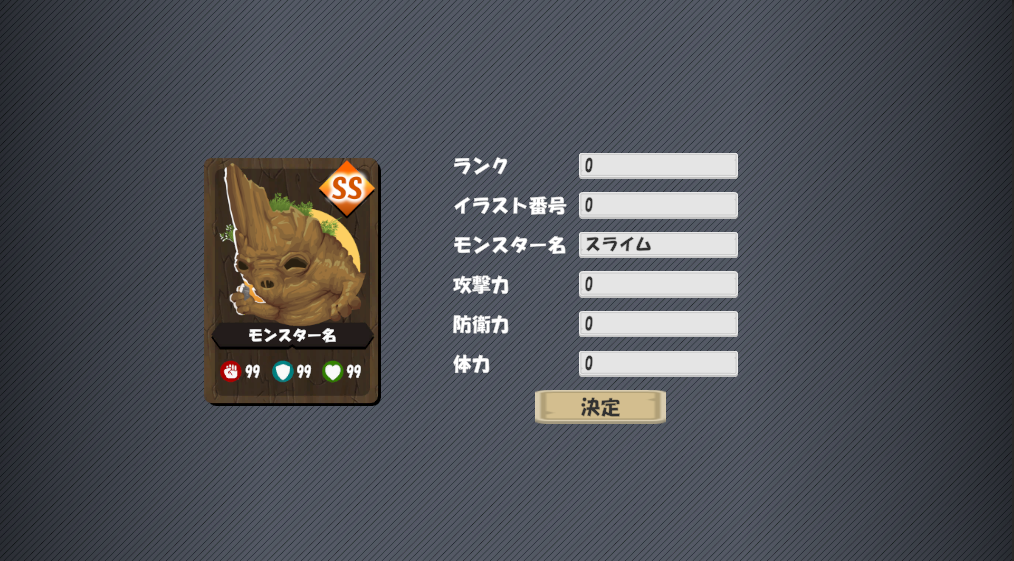
We can use this scene to test our card display functions. These are the following values:
- ランク:A value between 0 and 4, that correspond to C, B, A, S and SS in that order
- イラスト番号:A value between 0 and 9 to select the illustration in the center
- モンスター名:The name of the monster to display
- 攻撃力、防衛力、体力:Attack, defense and Hit Point values, between 0 and 99
This is all processed by the CardDisplay class. In particular the SetData method shown below:
// データを設定し、カードを更新
public void SetData(CardDisplayData data)
{
    // スプライトを読み込む
    cardRank.sprite = CardResources.GetRankSprite(data.rank);
    monsterPicture.sprite = CardResources.GetMonsterSprite(data.pictureID);

    // テキストを更新
    monsterName.text = data.monsterName;
    atkValue.text = data.atkValue.ToString();
    defValue.text = data.defValue.ToString();
    hpValue.text = data.hpValue.ToString();
}
Here, CardDisplayData is the data required to update the card
public struct CardDisplayData
{
    public int rank;           // ランク(0:C -> 4:SS)
    public int pictureID;      // 画像番号 (0~9)
    public string monsterName; // モンスター名
    public int atkValue;       // 攻撃力
    public int defValue;       // 防衛力
    public int hpValue;        // 体力
}
We can use this knowledge to create a new table for the database to hold all the cards in our game. Let's open phpMyAdmin again and create a new table named "cards"